

Discover effective ways to optimize your smartphone settings for a better reading experience, reducing eye strain and improving readability.
New Delhi, India Jul 26, 2026 ALN: Phone screens are better than they’ve ever been—bigger, sharper, and brighter—but they don’t always offer the best displays for extended reading sessions. If you’ve got a lot of text to get through, you might find yourself turning to a Kindle instead, or even a good old-fashioned physical book. This is a common scenario for many users who enjoy reading on their smartphones but find the experience lacking compared to dedicated e-readers or printed materials.
There are ways to tweak the screen configuration on your iPhone or Android phone, however, to make it more suitable for reading. These changes will reduce the chance of causing you eye strain while minimizing clutter to create a more pleasant reading experience. You won’t transform your phone into something that rivals an e-reader or the printed page, but you can certainly get closer to it. Understanding these adjustments can significantly enhance your reading sessions, making them more enjoyable and less taxing on your eyes.
You’ve actually got more control over the font sizes, styles, and colors used by your phone than you might have realized—you can make text easier to read and create a more Kindle-like experience with just a few taps via the main Settings panel. Adjusting these settings can help tailor your smartphone to better suit your reading habits, especially if you find yourself reading for extended periods.
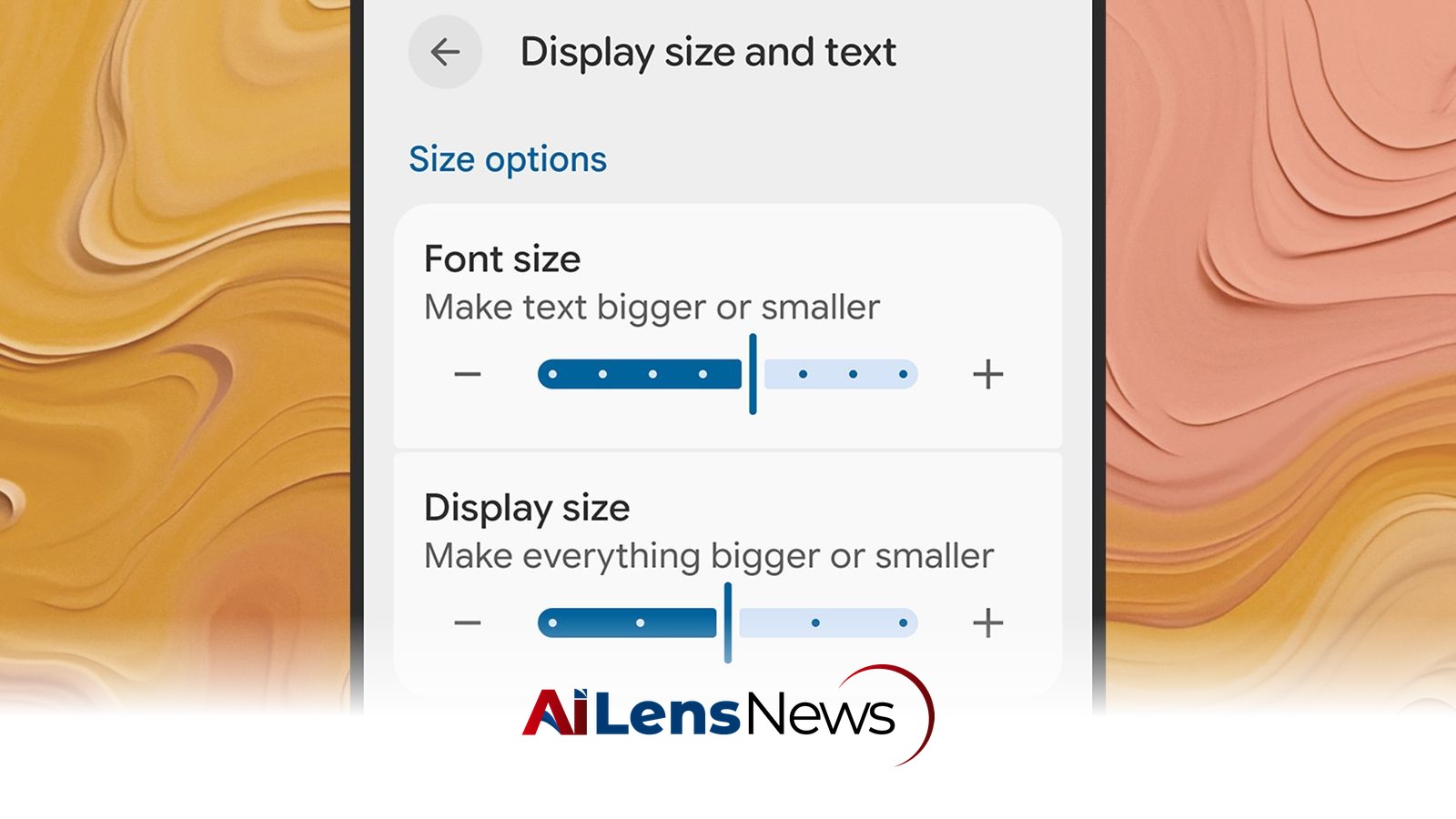
If you’re on Android, the menu labels will vary from model to model, but on Pixel phones head to Display size and text. The next screen lets you adjust the size of the default font and other on-screen elements to make text bolder, and there’s also a Dark theme option that you might find reduces eye strain. The dark theme is particularly useful in low-light conditions, as it minimizes the amount of blue light emitted from the screen, which can interfere with sleep patterns if you read before bed.
Over on iOS, open up Display & Brightness from Settings: Here you’ll find a Text Size slider you can adjust, as well as a Bold Text toggle switch. As on Android, there’s a dark mode option here via the theme selector at the top of the screen—select Dark to dim the colors all across the iOS interface. This feature not only helps in reducing glare but also enhances the contrast between the text and the background, making it easier to read.
Both Android and iOS also have a night reading mode that reduces the blue light emitted from your phone and makes the whole display warmer—which should make for a more pleasant reading experience. On Android Pixel phones, choose Display and touch > Night Light from Settings, and on iOS pick Display & Brightness > Night Shift. In both cases you can enable the feature manually or via a schedule. Scheduling these features can be especially beneficial for those who read at night, as it helps to prepare your eyes for sleep while still allowing you to enjoy your favorite content.
Much of the reading you’re going to be doing on your phone will be through its web browser, and most modern mobile browsers come with a dedicated reading mode you can use. These modes will reduce onscreen clutter, simplify the color scheme, and bring the main article text to the fore. This can be particularly useful when reading long articles or blog posts, where distractions can lead to a fragmented reading experience.
If you’re using Google Chrome as your default browser on Android, tap the three dots (top right), then Show Reading mode to switch views for the article you’re currently reading. Swipe up on the panel at the bottom of the screen to change the font and color options. Tap the reading mode icon (just to the right of the address bar) to return to the normal browser view. This feature allows you to focus solely on the content, enhancing comprehension and retention of the material.
With Safari on iOS, look for the reading mode icon to the left of the address bar: It’s a small rectangle over two horizontal lines, and it appears when you’re viewing any article that will work in reading mode. Tap the icon then Show Reader to enable the mode, then tap the icon again (which turns into a page symbol) to configure the reading mode settings and go back to the normal view. This streamlined reading interface can significantly enhance your reading experience, particularly for lengthy articles.
You don’t have to stick with the default option, as many third-party browsers offer a reading mode too. In the case of Firefox for Android or iOS, for example, you can tap the Reader View icon in the address bar for compatible pages—it looks like a printed page. If you see a lightning bolt icon instead (for article summaries), tap and hold on it to switch to Reader View. These options provide flexibility and cater to different user preferences, ensuring that everyone can find a reading mode that suits their needs.
Another option you’ve got is to install a dedicated read-it-later app for your phone, which will work a lot like the reading mode in your mobile browser. The gold standard here is Instapaper for Android or iOS. You can import and sync articles from a variety of devices, and catch up on your reading whenever you find the time. This is particularly useful for users with busy schedules who want to save articles for later without the distractions of a full web browser.
To add articles to Instapaper, you can pick the share option in your mobile browser when you’re viewing an article, then pick Instapaper as the destination. You can also add links through the Instapaper mobile app itself, by tapping the menu button (top left) then the + (plus) button. Instapaper is available on the web as well, and you can add items to read from the desktop too. This cross-platform functionality means you can save articles on one device and read them on another, making it incredibly convenient for users who switch between devices frequently.
Tap on any article in your Instapaper reading list in the app, and you get a beautifully clean and distraction-free reading experience. Tap the Aa icon up in the top right corner to change the interface settings: There are options here for page color, font size, font style, and pagination. This customization allows users to tailor the reading experience to their personal preferences, ensuring maximum comfort and readability.
Instapaper can be used free of charge, but it also offers a $3 per month premium subscription, which you might find useful. A paid account brings with it such extras as advanced article search, unlimited notes for your articles, and the possibility to have your saved articles read out to you. This premium option can be particularly beneficial for avid readers who want to enhance their reading experience further with additional features.
In conclusion, while smartphones may not replace the dedicated reading experience offered by e-readers or physical books, there are numerous ways to enhance your smartphone reading experience. By adjusting display settings, utilizing reading modes in browsers, and considering dedicated reading apps, you can create a more enjoyable and comfortable reading environment. With these tips and tricks, you can transform your smartphone into a more effective tool for reading, ensuring that you can enjoy your favorite articles, stories, and content with ease and comfort.
To learn more about the latest developments in Product Innovations, stay updated with our exclusive reports and analyses on AiLensNews.