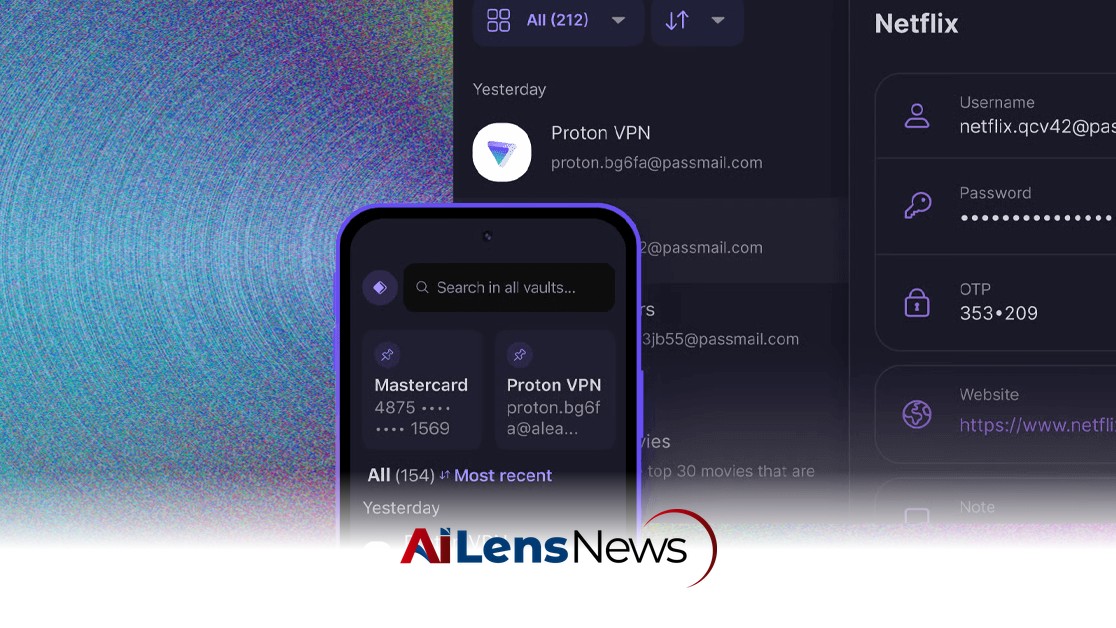


Explore the best password management apps of 2026, including Bitwarden, Proton Pass, and more, to secure your digital life effectively.
New Delhi, India Aug 2, 2026 ALN: Passwords are a classic catch-22: If they’re good, they’re hard to remember. But if they’re easy to recall, they aren’t effective. Because we are an eminently practical species, most of us err on the side of convenience. “Password” and “123456” have been the two most commonly used passwords on the web (“admin” also ranks high), and in 2026, sadly, that’s still the case.
It doesn’t have to be this way. In this article, I’ll teach you how to memorize hundreds of random 16-character strings and keep track of which works where.
Just kidding. That might work for Memory Grand Master Ed Cooke, but it probably won’t for you and me. What I will do is help you find a password manager to do the memorizing for you and give you access to those crazy-long, crazy-strong passwords whenever and wherever you need them.
Updated August 2026: We’ve revamped and reorganized this guide based on more recent testing.
Bitwarden is secure, open source, and free with no limits. The applications are polished and user-friendly, making Bitwarden the best choice for most users. Did we mention it’s open source? That means the code that powers Bitwarden is freely available for anyone to inspect, seek out flaws, and fix. In theory, the more eyes on the code, the more airtight it becomes. Bitwarden is also audited by third-parties to ensure it’s secure. You can even install it on a local server for easy self-hosting if you prefer to run your own cloud.
Bitwarden offers apps for Windows, macOS, iOS, Linux, and Android, as well as extensions for all major web browsers. Bitwarden also supports Windows Hello and Touch ID on its desktop apps for Windows and macOS, giving users the added security of those biometric authentication systems. The web interface (which I frequently use) is also well done and easy to use.
Bitwarden supports passwordless authentication, meaning you can log in with a one-time code, biometric authentication, or a security key. Bitwarden also has excellent support for passkeys, including the ability to log into Bitwarden with a passkey, which means you don't need to use your username or password even to open your vault. There’s also some extras, like a feature to securely share files (called Bitwarden Send), a built-in 2FA authenticator app (paid only), and an extremely active and helpful community.
We like Bitwarden’s semi-automated password fill-in tool. If you visit a site you’ve saved credentials for, Bitwarden’s browser icon shows the number of saved credentials from that site. Click the icon, and it will ask which account you want to use and then automatically fill in the login form. This makes it easy to switch between usernames and avoid the pitfalls of autofill. If you simply must have your fully automated form-filling feature, Bitwarden supports that as well.
Most web browsers offer at least a rudimentary password manager. (This is where your passwords are stored when Google Chrome or Mozilla Firefox ask if you’d like to save a password.) This is better than reusing the same password everywhere, but browser-based password managers are limited. In recent years, Google has improved the password manager built into Chrome, but it’s still not as full-featured or widely supported as a dedicated password manager like those below.
It’s not as secure, either. Although your passwords are encrypted in your browser, they’re trivially easy to decrypt if someone has access to your computer. Avoid using your browser’s password manager if someone else can potentially get access to your machine.
Readers have also asked about Apple’s password manager, which syncs through iCloud and has some nice integrations with the Safari web browser—even a dedicated app. There’s nothing wrong with Apple’s system. It doesn’t have some of the nice extras you get with dedicated services, but it can secure your passwords and sync them among Apple devices. The main problem is that if you have any non-Apple devices, you won’t be able to sync your passwords to them. All in on Apple? Then this is a viable, free, built-in option worth considering.
A concerted effort to get rid of passwords began roughly two days after the password was invented. Passwords are a pain—you’ll get no argument here—but we don’t see them going away in the foreseeable future. The latest effort to eliminate the password comes from the FIDO Alliance, an industry group aimed at standardizing online authentication methods.
Apple supports the FIDO specs and coined the term passkeys, which has caught on. Passkeys are generated cryptographic keys managed by your device (usually your phone). They’re easy to create—you don’t need to do anything, as your device handles the details. Your passkeys are stored on your device and protected by either biometrics or PINs. Since passkeys are generated key pairs instead of passwords, there’s nothing to remember.
While passkeys aren’t a radical departure, they’re still an improvement by virtue of being a preinstalled tool for people who aren’t going to read this article and immediately use one of the services below. If millions of people suddenly stop using 12345678 as a password, that’s a win for security.
Almost all of the apps we’ve suggested here can store passkeys, which means you can store your passkeys right alongside your passwords. Our two favorites, Bitwarden and 1Password, can generate, save, store, and sync passkeys. You can even log in to Bitwarden using a passkey, which pretty much eliminates the need for a password at all.
Think of passkeys as credit cards next to the cash (passwords) in your wallet. One day passkeys may work everywhere and there will be no passwords, no password managers. In the meantime, we think it’s better to stick with a password manager, even if all you’re doing with that manager is storing passkeys.
To learn more about the latest developments in Product Innovations, stay updated with our exclusive reports and analyses on AiLensNews.